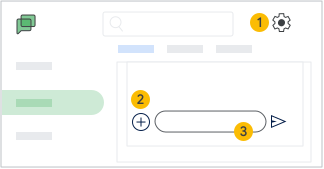
Send messages to an individual or group
- Search for people and spaces or words and phrases in messages
- Click Add “
 ” to search for a person or group. To chat with several people, select Start group conversation
 - Select a person or group to chat with. Enter your message and click Send “
 “
“ - Next to a person or conversation, click More “
 ” to:
” to:- Adjust notifications
- Leave a conversation with the option to return
- Block a person or space
- Hide or delete a conversation

Create a space for your team
- Click Add “
 “and thenCreate space “
 “. You can then name the space, add people to it, and set restrictions
 - Click a space name to:
- View members
- Add people and bots
- Set notifications
- Leave a conversation
- Click a message to start a new conversation

Work with Chat
- Click Settings “
 ” to manage notifications, blocked people and spaces, and more
 - Next to a message, click Add “
 ” to insert a file from Google Drive “
 “, add a Google Calendar event “
 “, or (spaces conversations only) create a new file in Docs, Slides, or Sheets
 - In a message, you can:
- Insert emojis or GIFs
- Upload a file
- Start a video meeting